We’re pleased to announce that we’ve streamlined the ordering process on our mobile platform for Parents. Enhanced Product Forms allow parents to easily place food product orders for multiple dates and topping selections. Parents are now able to place orders for one or more students for the same items in just a few simple taps. Copy, Merge, and Split are new functions that reduce the amount of time parents spend entering options and form content for multiple students for the same items.
1) Using your mobile or desktop device, go to https://school-day.app/#!/and log in.
2) Complete all applicable options and forms on a Product for one of your students. Once you do so, the Copy, Merge, and Split functions will be visible below the student, dependent on the item type.
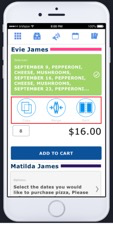
• Please note that Copy, Merge, and Split will only appear if you have two or more students linked to your account, and the item is available to more than one student.
3) Tap on Merge.

4) The names of the students linked to your account to whom the item is applicable will appear.

5) Tap the students for whom you wish to merge your completed options and forms, then tap on Merge.

6) All selected students will be merged so they all share the same options and form input, which is visible in the green options and forms section.

7) Tap on the green options and forms section if you wish to change the merged input.

8) Scroll up on the screen to review and edit any portion of the merged input if required.
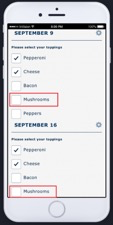
9) Continue to edit merged content by scrolling up on the screen, until the Done option is displayed. Tap on Done when you have completed all edits.

10) Scroll up on your screen and tap the Add To Cart option once you are satisfied with all option and form content.
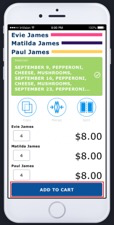
11) Tap on the Cart icon if you wish to Checkout. Alternatively, you may tap on View In Cart. When Merged has been used, the items will be added to your cart for all students at the same time.

• If after merging students you realize one or more students should not submit the same options and forms, tap on Split. For more information about the Split function, click on the link provided, or see related articles.
Was this article helpful?
That’s Great!
Thank you for your feedback
Sorry! We couldn't be helpful
Thank you for your feedback
Feedback sent
We appreciate your effort and will try to fix the article