If you want to receive email notifications for items posted that require approval, you can easily enable this feature in your profile settings. Here's how to do it:
1) First, log in to your account and navigate to your dashboard.
2) Once on the dashboard, look for the settings icon located on the bottom left corner of the page and click on it.
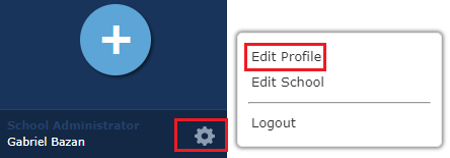
3) From the settings menu, select "Edit Profile" to access your profile settings.
4) In your profile, you will see that Email Notifications are defaulted to "Disable". This means that you are not currently receiving email notifications for items posted that require approval.
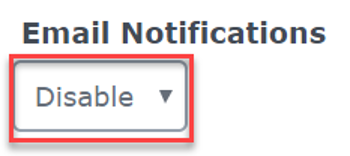
5) To change this setting to "Enable", simply select "Enable" from the drop-down menu next to Email Notifications.
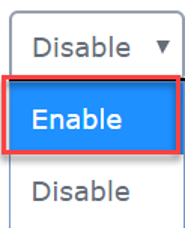
6) After selecting "Enable", don't forget to click on the "Update" button to save your changes.
Once you have updated your profile settings to enable email notifications, you will start receiving an email notification for each item posted that requires approval. This can help you stay informed and up to date with any new items that need your attention.
If you have any further questions or issues with enabling email notifications, feel free to reach out to our customer support team for assistance. We are here to help!
Was this article helpful?
That’s Great!
Thank you for your feedback
Sorry! We couldn't be helpful
Thank you for your feedback
Feedback sent
We appreciate your effort and will try to fix the article