Student Fees allow you to assign a specific fee to a student or groups of Students. Fees can be applied independently of Class/Groups or associated with a Class/Group. Parents can then pay the assigned fee partially, or in full. The student will now hold a balance which they can pay down over time. Fees are designed for any type of school fees you might need to collect, such as library fees, team/club/group fees, lost textbooks, or large ticket items like multi-day trips, where Parents might wish to pay for an item over time.
Add a Fee
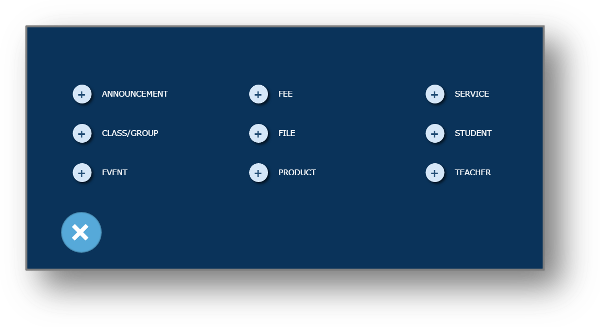
To add a Student Fee, click the Add button and select Add Fee.

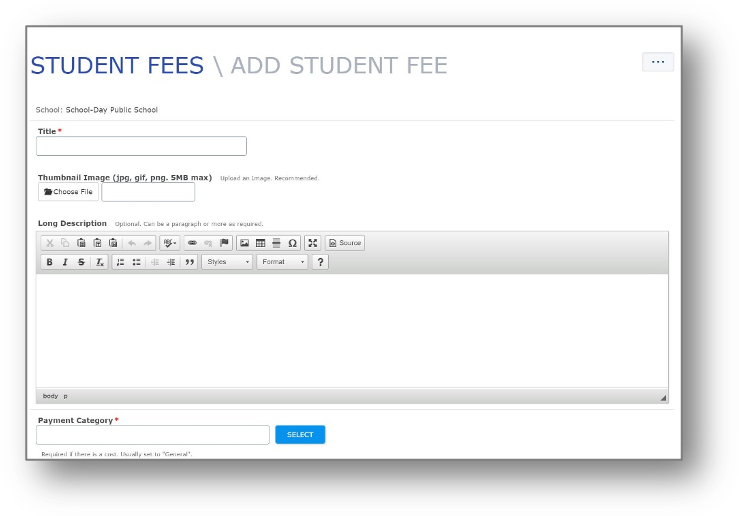
Fill in all required fields by typing in information or selecting from the menus. Mandatory fields are marked with a red asterisk.
If your school does not have the Cost Calculator set, your Actual Cost and Display Price will both be the same. If the Cost Calculator is set, please see the Actual Cost/Display Price explanation in the Products section of the Administrator User Guide.
Click Save to create your Student Fee. Once you make the Fee, you will need to Assign or Associate the Fee for it to be linked to Student accounts, and payable by Parents.
Edit a Student Fee
To edit a Student Fee, click the name of your Fee to get to the Fee’s page (or click Student Fees from your Dashboard menu to access a list of all Fees). On the Student Fee page, click Edit Student Fee.
Delete a Student Fee
To delete a Student Fee, click the name of the Fee to get to the Fee’s page, and click Edit Student Fee. Delete Fee is an option near the bottom. You can only delete a Fee if no partial payments have been submitted by Parents. If partial payments have been submitted for your Fee, you must first refund those purchases. Deleting a Fee will remove all Fee Assignments to Students and Associations with Classes/Groups, but you will still retain a record of all payments made towards the fee in your Payment History.
Associate a Student Fee
Student Fees can also be associated with Classes/Groups. This allows a fee to be assigned to an entire Class/Group, an
entire school, or specific grade groupings quickly, and means that any students enrolled in the Classes/Groups will automatically receive this, Fee. It will be automatically removed from their account if they leave the Class/Group (unless a payment has already been made) and will be automatically assigned to a student’s account if they join the Class/Group. You can Associate one Fee, or multiple Fees at the same time.
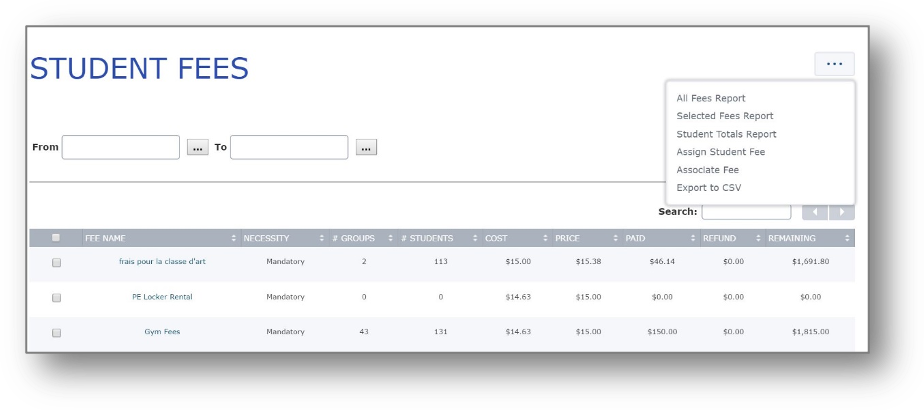 To associate multiple Fees with Classes/Groups at the same time, first select the checkbox beside multiple Fees, then click the More… button and lastly select Associate Fee. Or just select one Fee.
To select a Class/Group, click on the name, which will highlight in blue, or clickSelect All.
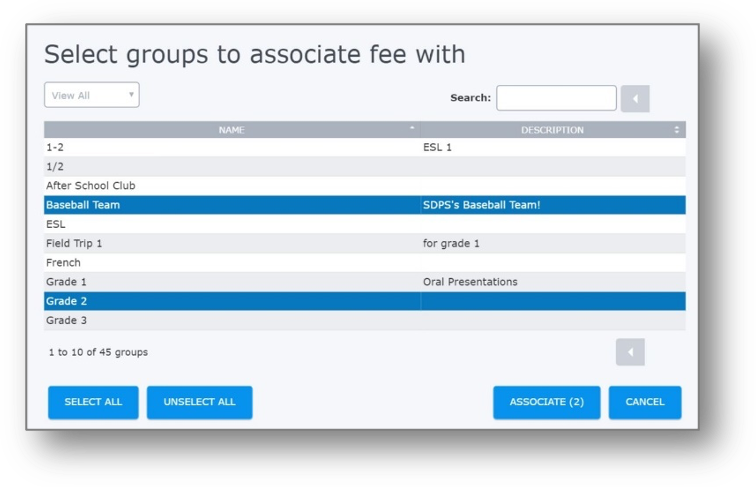 You can select more than one Class/Group to Associate the Fee with, just click multiple to highlight. Once you have made your selections, click Associate.
Once you Associate a Fee with a Class/Group, you will see a list of linked Classes/Groups on the Fee’s page. If a student is in more than one Class/Group that has been associated with this Fee, their account will only be charged with one instance of the Fee. If you need to assign an identical Fee more than once, you must use Assign Fee to add the second occurrence manually.
Please take care when associating multiple Fees to multiple Classes/Groups to ensure you’re associating them correctly.
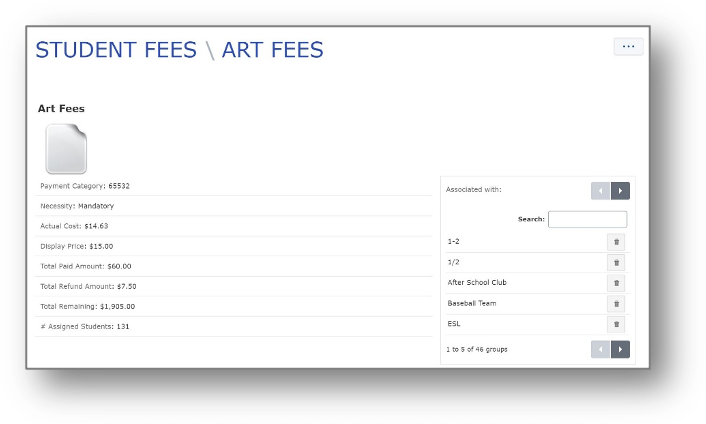 To unassociate a Fee with a class, use the garbage can icon to clear. The Fee will be cleared from class, and from every Student’s account (unless a payment has been made).
If a duplicate Fee was assigned to a student, that Fee must be cleared using the Student Fee Assigned Report.
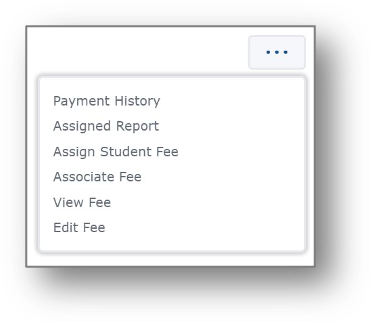 Assign a Student Fee
Once you have created your Student Fee, you will need to assign it to individual Students, in order for it to be visible to Parents, and connected to the Student’s account. Assigning the Fee is good for items which don’t relate to classes. Or, you may wish to Associate the Fee with particular classes, discussed later. To assign to individual Students, click Assign Student Fee to begin.
On the Select Students screen, you can use the drop-down lists or Search bar to find a Class/Group or individual Students.
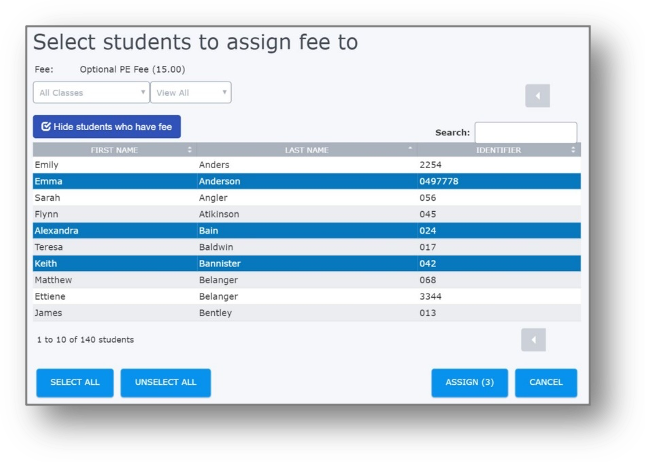
You can use the Hide Students option to hide students that already have this Fee Assigned or Associated to them, so that you don’t accidentally apply the Student Fee twice.
To select a Student, click on their name, which will highlight in blue, or click Select All to select an entire Class/Group. You can select multiple Students by clicking on their name.
Once you have made your selections, click Assign.
Review Student Fee Information
To review general information about your Student Fee, click on the Fee’s title from the list in the Student Fees area. You will see a list of Associated Classes/Groups, as well as some summary information about Assigned Students and outstanding totals.
To review the payment records for your Student Fee, click Assigned Report. This will show only the students who have had that fee assigned to them.
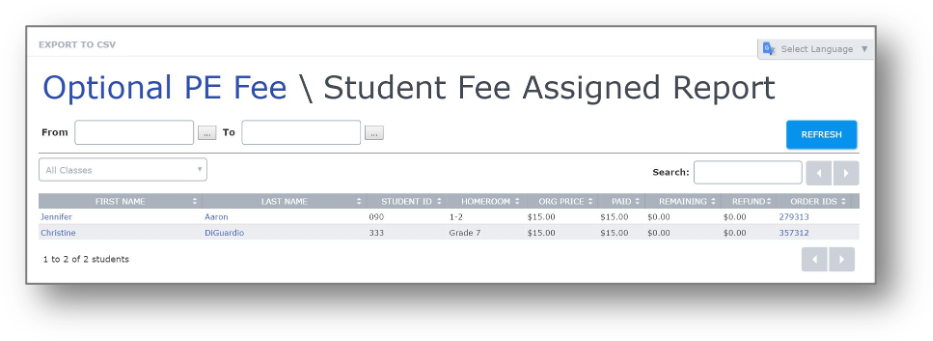 This report can be filtered by the date paid using the From and To calendars, using the Search bar to find a particular Student, or filtering by a particular class. As well, you can hide Paid Orders, in order to quickly discern any outstanding payments. The report can also be exported to CSV. This report will show you information about your Student Fee, such as:
Org. Amount – the original assigned Fee price
Paid - the amount the student has paid so far
Remaining – the amount of the original assigned Fee price left to pay
Parent View of Student Fees
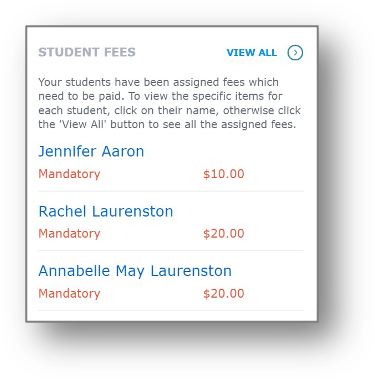 When a student is assigned a Student Fee, information will show up on the Parent Dashboard.
An information box shows them their Student’s applicable Student Fee amounts.
Clicking on a Student’s name, or the View All button will bring you to a list of applied fees. The fees display information and Fee Amount.
When a Parent clicks Add to Cart they are shown the balance owing, and given an option to complete the Amount to Pay field themselves. This field is designed to allow the Parents to make a partial payment.
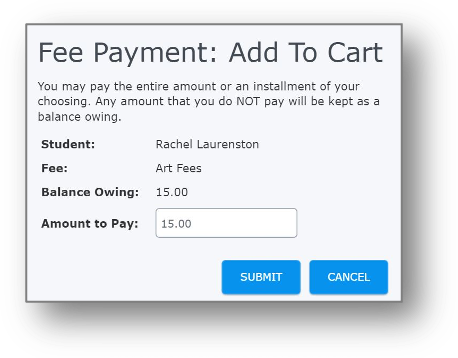
If a Parent makes a partial payment, the Student Fee will remain displayed, with an updated Balance Owing. It will not clear from view until they have paid the complete Balance Owing as assigned under the particular Student Fee.
Student Account
Once a Student Feeis applied to a Student, you can track that information on a per Student basis.
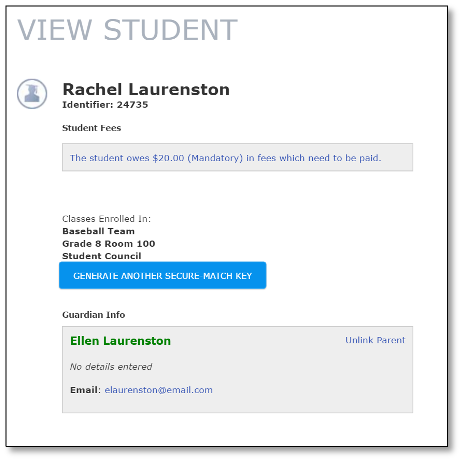
Using the Students tab, navigate to a Student and click on their name. On their information page, you will see the total fees needing to be paid.
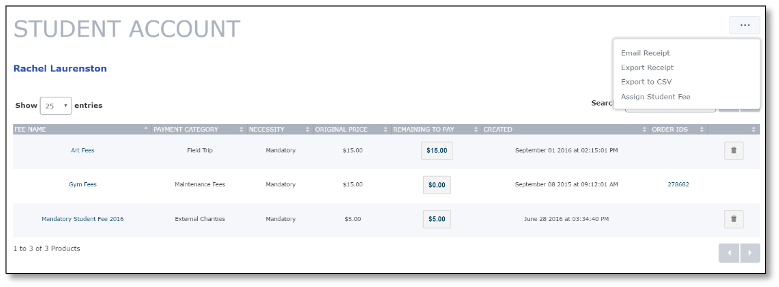 Click on the fee information and you will be brought to the Student Account page. Here you can review any assigned fees, generate reports, apply a subsidy, print a receipt, and assign further fees.
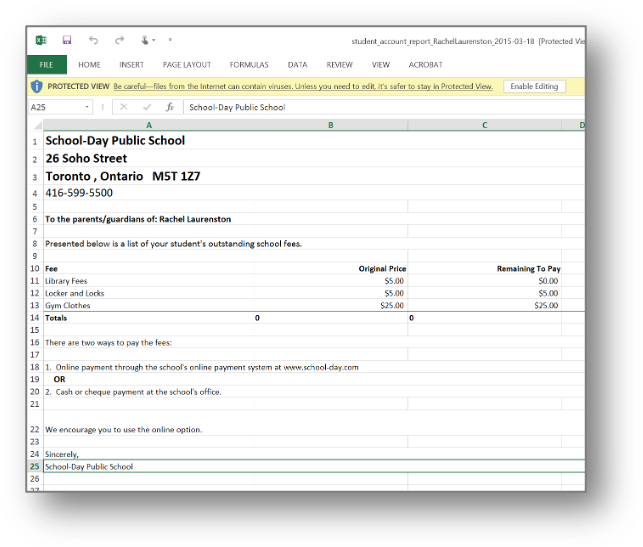 By clicking Export Receipt, you can generate an Excel file that contains a printable receipt of Fees for that student. Or, save paper, ink, and associated costs and time by clicking Email Receipt to electronically send the invoice with a custom message option.
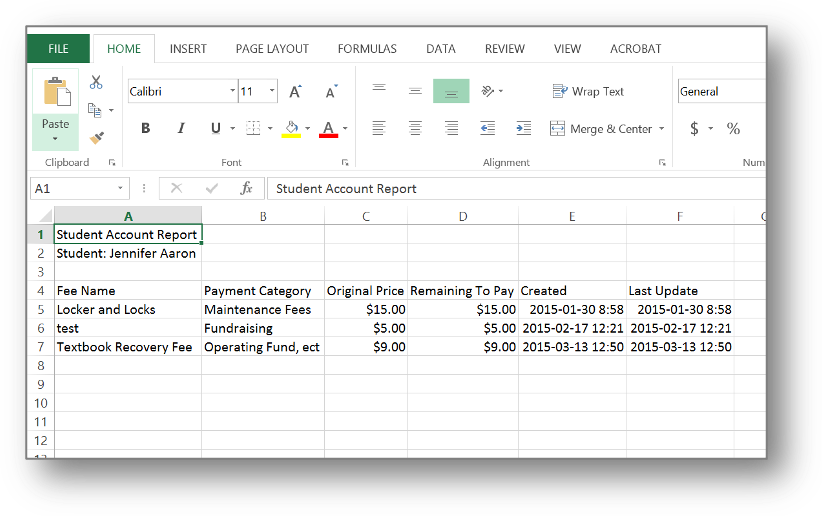
By clicking Export to CSV, you can generate an Excel file of the Student Account, for download and use in other programs.
Apply Subsidies
To apply a subsidy, navigate to the Student Account page using the Students tab, navigating to a Student and clicking on their name. On their information page, you will see the total fees needing to be paid.
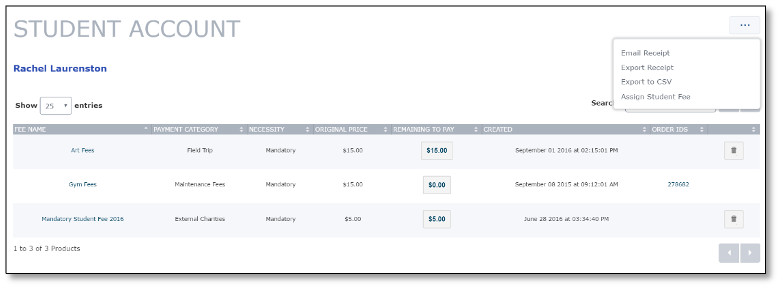 Click on the fee information and you will be brought to the Student Account page.
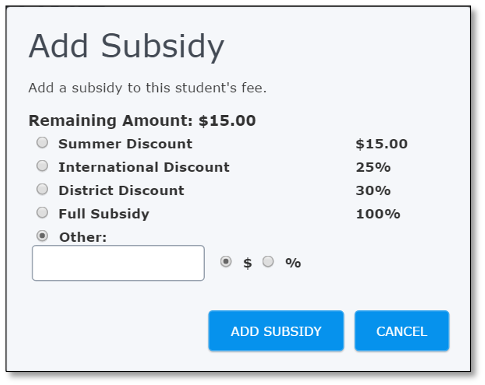 To subsidize a Fee, click on the payment amount under the Remaining to Paycolumn.
Pick from pre-set subsidy amounts or percentages, or enter your own subsidy by dollar amount or percentage, and click Add Subsidy.
Once you add the subsidy, the Remaining to Pay amount for the Fee will update to reflect either a dollar change, or a percent change, and the subsidy will generate an Order Number.
This Order Number now allows the subsidy to be tracked throughout your school’s payment history as a dollar amount.
Accept Cash Payments for Fees
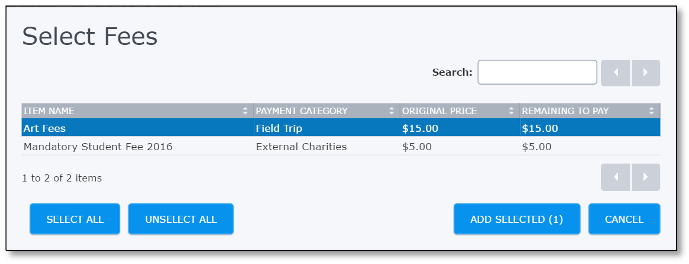
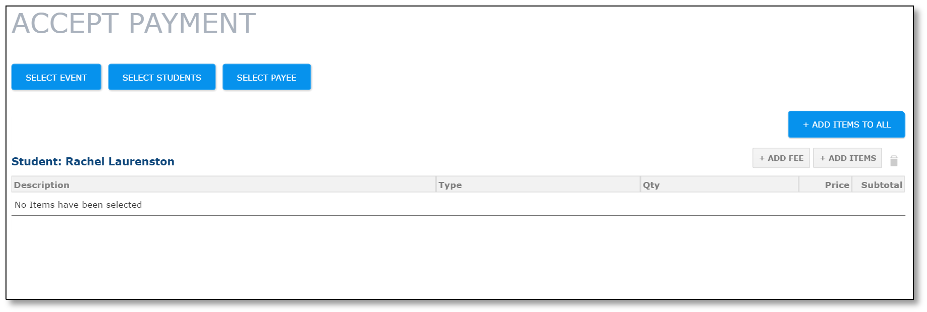 Administrators can accept a cash or cheque payment for Fees. Use the Accept Payment link to navigate to one Student, or more than one Student (please see the Accept Payment section of your Administrator User Guide for further information on this).Click Add Fee to begin.
The system will then generate a list of Fees to accept payment for.
Only Fees that have been previously Assigned to a Student or Associated with a Student’s Class/Group will appear for you to select. Click on the Fee(s) to highlight, and click Add Accepted.
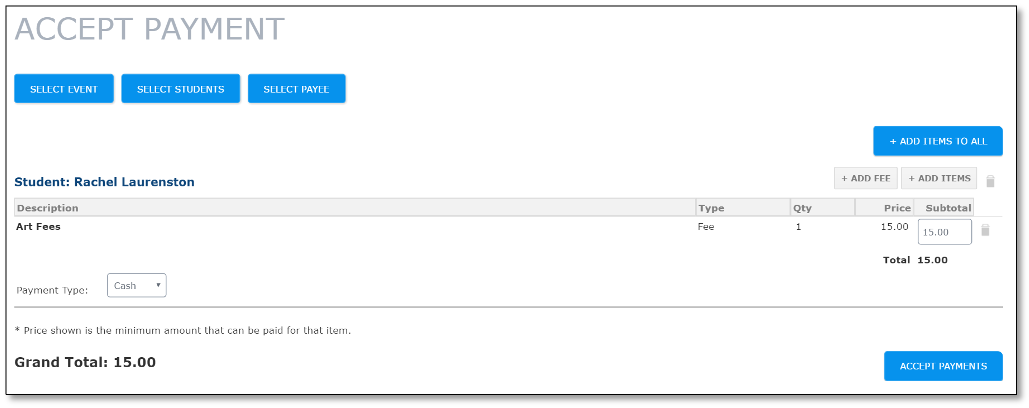 Use the Subtotal field if you are only receiving a partial Fee payment, choose the Payment Type and click Accept Payment.
Student Fees Reports
Payments for Student Fees will always appear in your Payment History, but there are other filtered reports you can access which will show you your information grouped in meaningful ways.
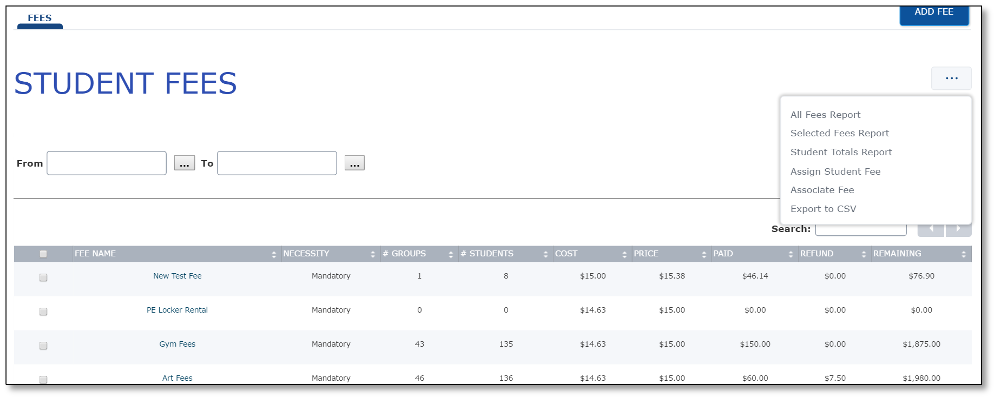
To access the Student Fees Reports, click Student Fees from your dashboard.
All Fees Report
Click All Fees Report to see a list of all of your school’s Assigned/Associated Fees. Preselect some Fees beforehand to view particular Fees. This will give you a report that details all Fee information, including Students linked, amounts paid, and outstanding balances.
Student Fee Totals Report

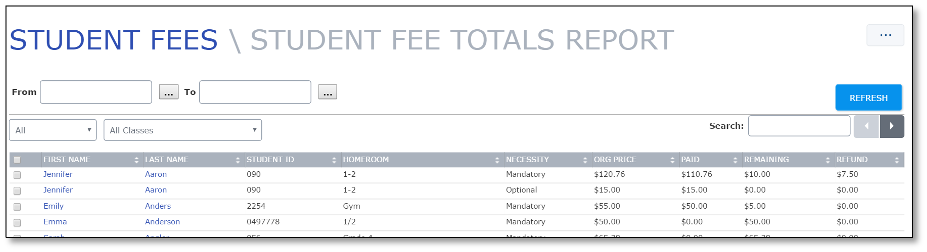
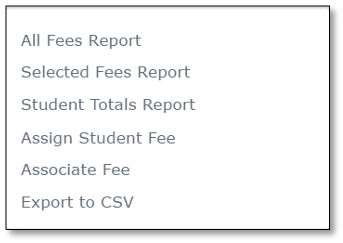 Click Student Fee Totals Report to view the Student Fee Totals Report, which will show you all Students who have a Fee amount applied to them, broken down into Mandatory or Optional, and it gives Student totals while showing any payments and remaining balances.
Use the search functions to narrow down your results, and export to CSV for an Excel file of your filtered selections.
Bulk Receipts
You can generate bulk receipts from the Student Fees Total Report by selecting multiple students before hitting Export Receipt. You will generate an Excel file, with each receipt broken up by a page break. You can email, edit, or save these receipts, or you may print them. Please be advised that when you print the receipts, they will contain both Mandatory and Optional fees for each student, and will print one receipt per page. We ask you to carefully consider when you print paper receipts – School-Day has been designed to allow all fees to be visible online for all parents, thereby drastically reducing the need for you to print paper copies, and allowing you to save the printing and paper costs and help reduce resource use.
Other Reports
You may have additional reports related to Student Fees under your Custom Reports section under the Payment Centre.
Was this article helpful?
That’s Great!
Thank you for your feedback
Sorry! We couldn't be helpful
Thank you for your feedback
Feedback sent
We appreciate your effort and will try to fix the article